Managing custom permission groups
Create a group with the permissions people need for their archive work, and keep its access up to date.
A custom permission group lets you choose which tasks its members can carry out in the Admin workspace.
Use one when the built-in groups do not fit the agreed responsibilities. You might need people to edit descriptions without managing audiences, or maintain Directory entries without approving changes.
Custom groups are optional. Start with Managing access to the Admin workspace if the built-in groups meet your needs.
Who can manage custom groups
Creating a group, changing its details or permissions, managing its members and deleting it all require Root access: the application’s special system administration authority.
These powers cannot be given to another account through a custom group. Permission to invite accounts also does not include permission to assign them to permission groups.
Agree on the intended work with the people responsible for the archive before choosing permissions.
Choose permissions for the tasks
Begin with what members need to do.
Access Admin UI allows entry to the workspace. Reading records, creating them, editing drafts, submitting changes and making review decisions require their own permissions.
Also include permission to find information needed for the work. For example, selecting an existing contributor requires Directory lookup access as well as permission to edit the draft. Creating a missing Directory entry needs an additional permission.
See Crediting people and communities for those requirements.
To inspect the available permissions, open People & Access → Permissions. A group’s Capabilities section shows the permissions already assigned to it.
Only permissions available for assignment can be added to a custom group. Some powers remain reserved for Root, and some features are unavailable to all accounts.
Permission to read records in Admin includes private records and records for audiences the account does not belong to. Consider that wider access when choosing permissions.
Check the account’s other groups
An account receives the combined permissions of all its groups.
Adding a group with fewer permissions does not remove access granted by another group. To reduce someone’s access, review every membership that grants the permissions they should no longer have.
Permission groups also do not change audience membership. Review that separately when responsibilities change.
Create a custom group
- Open People & Access → Admin Groups and choose Create group.
- Enter a clear Display name and, if useful, a Description explaining when the group should be used. Choose Next.
- Select the initial permissions, or leave them for later. Include Access Admin UI if this group should give members entry to Admin. Choose Next.
- Select any initial members, review the summary, then choose Create group.
The group, selected permissions and initial memberships are saved together.
Active and invited accounts can be selected as members. Invited people still need to activate their accounts before signing in. Inactive accounts and Root accounts cannot be added to other permission groups.
A group’s name describes its purpose; the selected permissions determine what members can do.
Change a group’s permissions
Permission changes affect every member of the group.
- Open the custom group’s details.
- Choose Manage permissions, or open Manage group → Permissions.
- Select the permissions to add and clear those to remove.
- Choose Save permission changes.
Changing the selection alone does not save it.
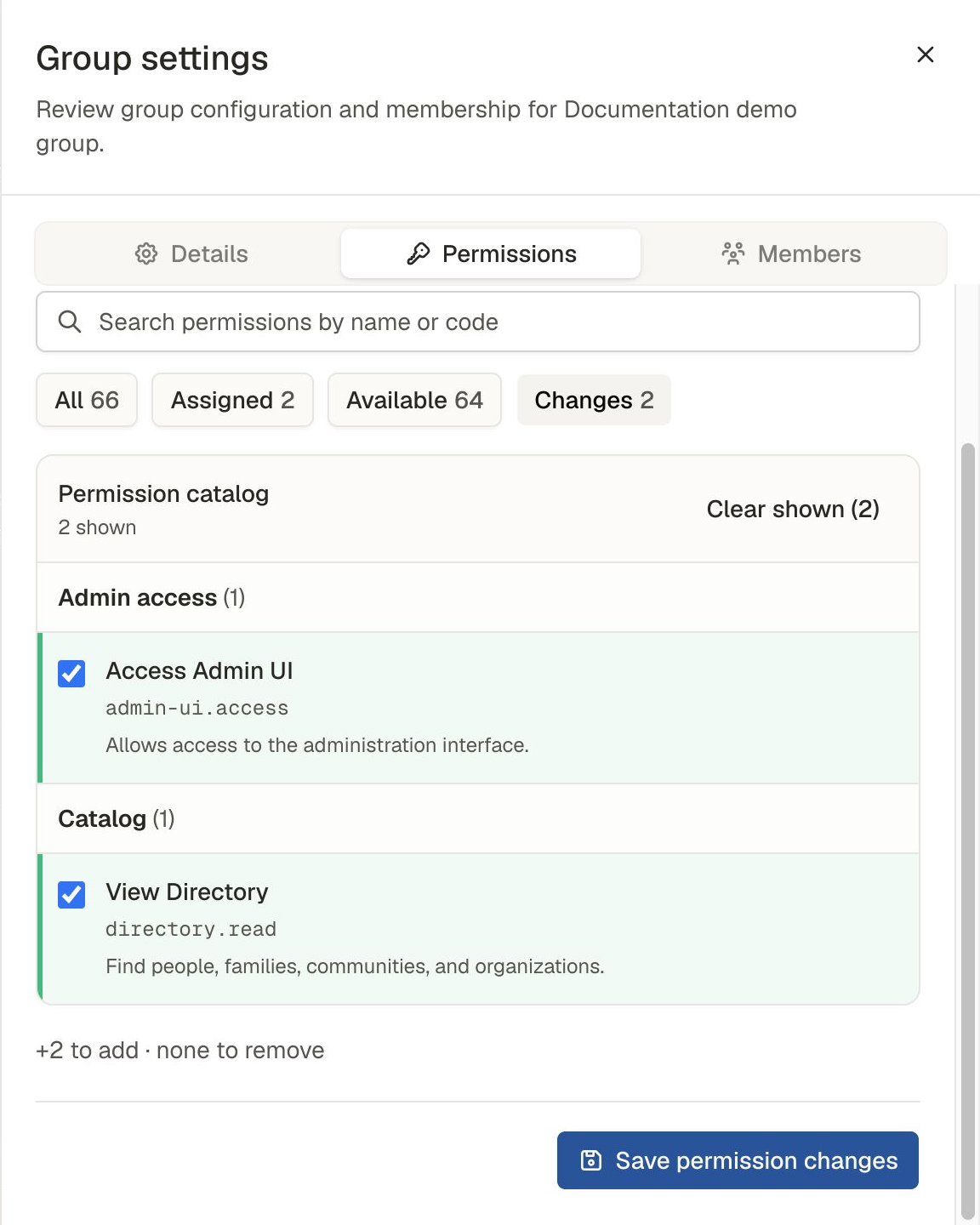
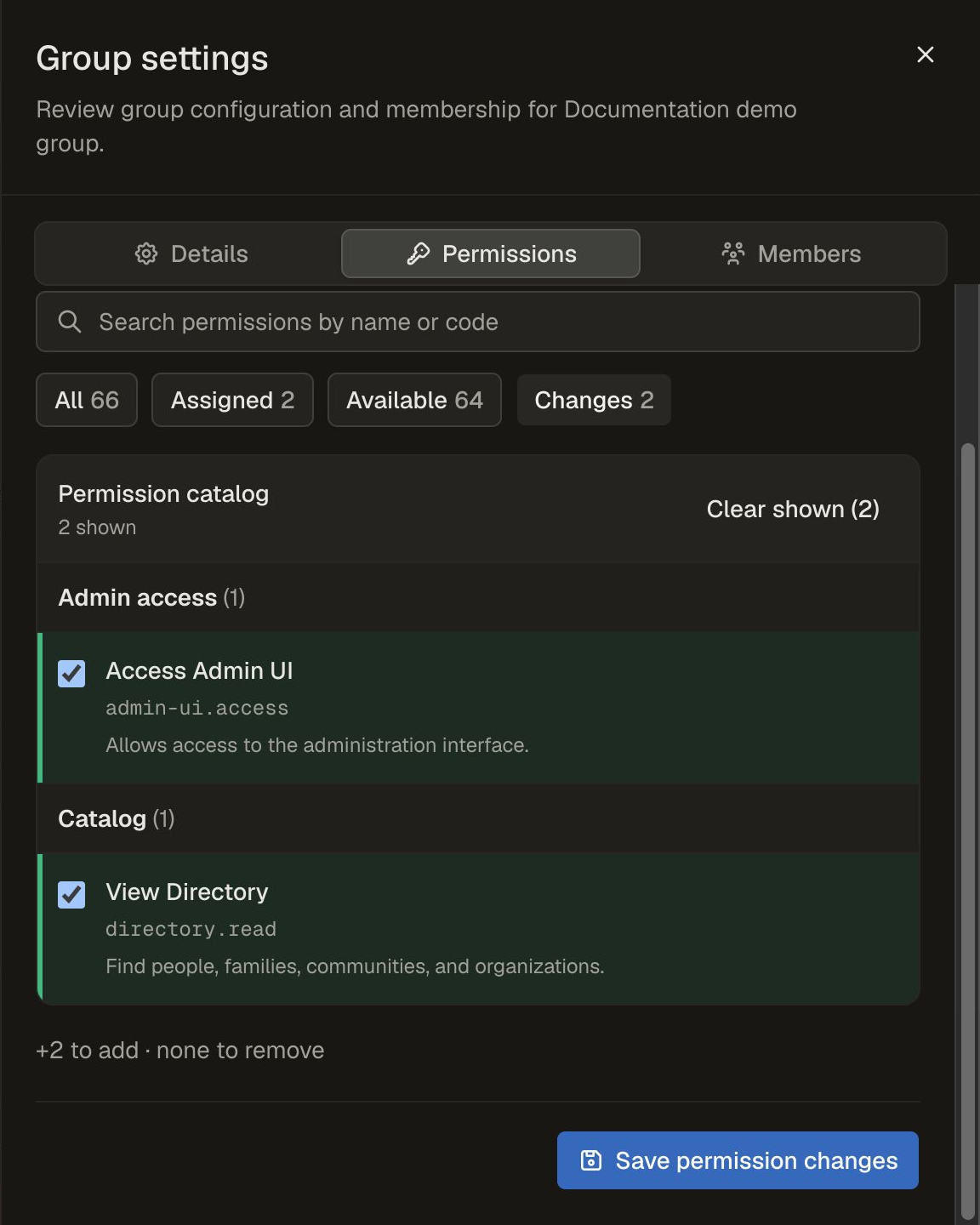
Two permissions selected for the demonstration group. Use Changes to review pending choices before choosing Save permission changes.
The application checks current permissions when protected actions are requested. An open screen may need refreshing before its controls reflect a change.
A permission update can partly succeed. If the interface reports that some changes may have applied or the result cannot be confirmed, follow its reload guidance. Check the resulting permission selection before trying again.
Changing working permissions leaves audience memberships, Directory credits, rights information and cultural guidance in place. It cannot recall information someone has already read or copied.
Add or remove members
- Open the custom group’s details and choose Manage members.
- Under Add a member, select the intended account and choose Add selected member.
- To remove someone, choose Remove beside their account and confirm Remove member.
Removing a membership leaves the account in place. It also leaves any permissions granted through other groups.
If a change’s outcome cannot be confirmed, follow the interface’s guidance and check the resulting membership before trying again.
Change a group’s name or description
Open the custom group and choose Manage group → Details. Update its name or description, then choose Save details.
Changing these details does not change the group’s permissions or members. If the result cannot be confirmed, follow the interface’s reload guidance before trying again.
Naming a custom group “Root” does not give it Root access. It remains a custom group with only its assigned permissions.
Custom groups do not change the protections on built-in groups.
Delete an unused group
A custom group can be deleted only when it has no members and no assigned permissions.
Before removing memberships, check what access those accounts will retain through other groups.
- Open the custom group’s details.
- Remove its members through Manage members.
- Remove its assigned permissions and choose Save permission changes.
- Choose Delete group, check the group named in the confirmation, then confirm deletion.
Deletion permanently removes the custom group. It does not delete accounts, contributions or audience memberships.
If deletion is blocked, read the explanation. If its outcome cannot be confirmed, follow the interface’s guidance and check the group list before trying again.
Related reading
- Managing access to the Admin workspace explains the built-in groups and group membership.
- Choosing who can read records explains visibility and reading audiences.
- Crediting people and communities explains Directory access and contributor credits.
- Community decisions and responsibilities explains the decisions behind working arrangements.