Managing access to the Admin workspace
Choose permission groups for archive work and add or remove members.
The Admin workspace is where people prepare records, review changes and maintain archive information.
Permission groups bring together the permissions needed for different kinds of work. Adding an account to a group gives it the permissions assigned to that group. In the interface, these groups are called Admin Groups.
Agree on the work someone should carry out before choosing their groups. Application permissions support those arrangements; they do not establish cultural authority or standing in the community.
Who can manage this access
Adding or removing group members requires Root access: the application’s special system administration authority.
Other accounts may have permission to inspect groups, their members or their assigned permissions. Being able to view that information does not give someone permission to change it.
Permission to manage reading audiences or invite accounts also does not allow someone to assign people to permission groups.
Start with the built-in groups
Kiskemisowin includes two groups for common archive work:
| Group | Main work it allows |
|---|---|
| Archive Administrators | Creating and editing records, submitting changes, working with the media library, and managing reading audiences and their members. |
| Reviewers | Reading records and review requests, and approving or rejecting requests. |
Archive Administrators membership does not include approving changes, inviting accounts or changing group membership.
Reviewers membership does not include preparing drafts or managing audiences.
These are summaries rather than complete permission lists. Some tasks need additional permissions. For example, neither group includes Directory lookup or maintenance permissions. Check the relevant guide when planning access for a particular task.
An account can belong to both groups and receives their combined permissions. The application allows someone with the necessary permissions to approve their own submission. Any requirement for a different reviewer or wider consultation needs to be arranged by the people responsible for the archive.
Group membership does not add someone to a reading audience or credit them on a record.
Check a group’s permissions and members
To open a group, you need permission to enter Admin and read groups. Viewing its members also requires permission to read group memberships and user accounts. Viewing its assigned permissions requires permission to read group permissions.
- Open People & Access → Admin Groups and choose a group.
- Read Capabilities to see the permissions the group gives its members.
- Read Members to see the accounts belonging to it.
The separate People & Access → Permissions page lists the available permissions. Opening it requires permission to read that catalog.
Your access may let you see a group without all its details or counts. An unavailable section does not mean the group has no members or permissions.
Add or remove a member
These steps require Root access.
Active and invited accounts can be added. An invited person still needs to activate their account before signing in; group membership does not activate it. Inactive accounts cannot receive new group assignments.
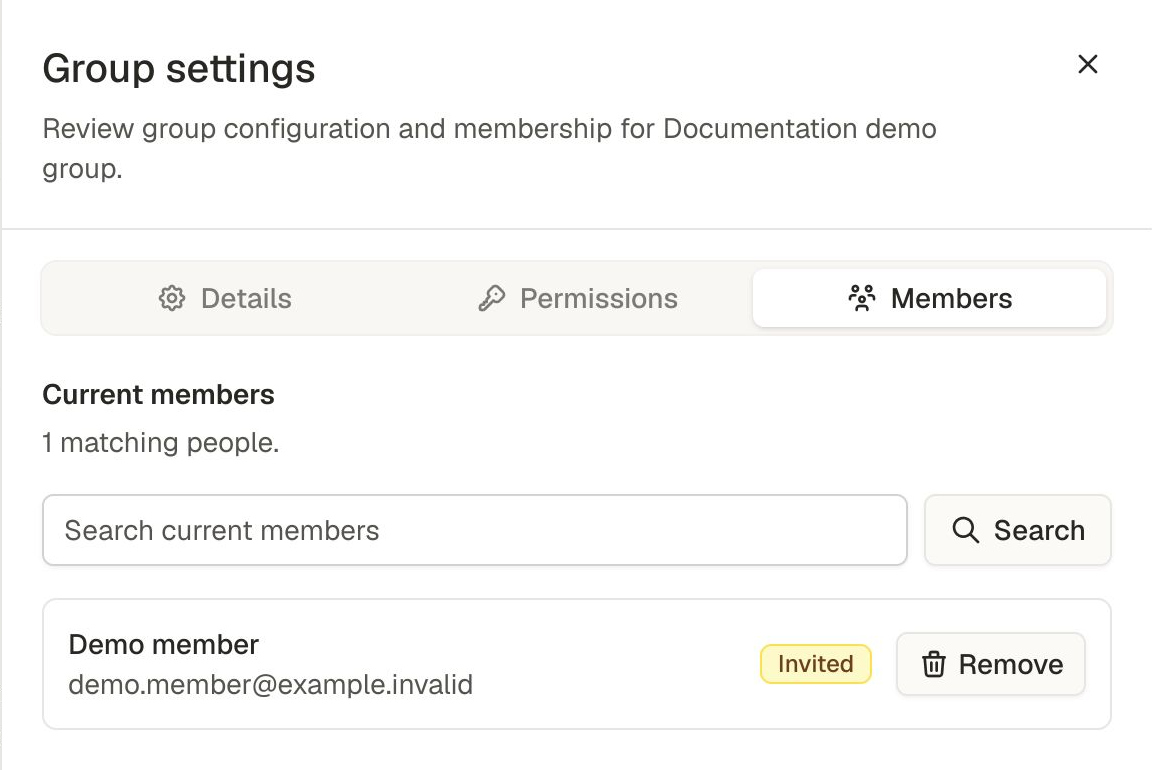
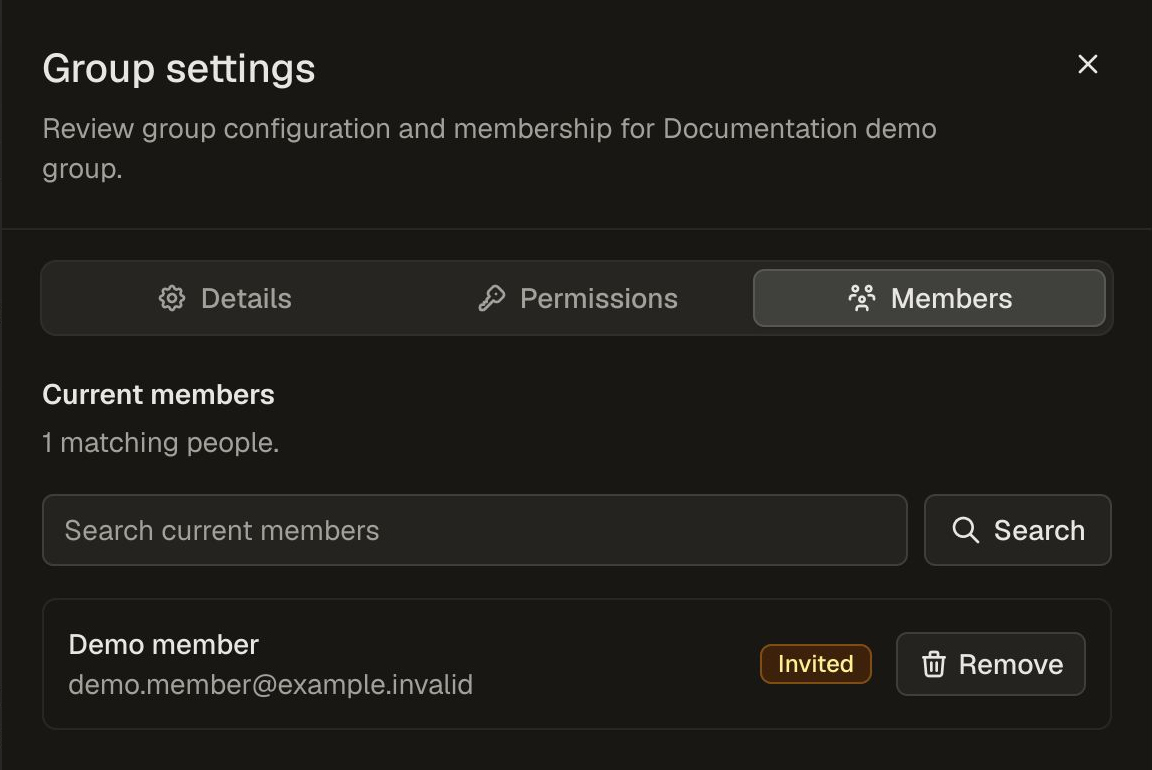
A fictional member, viewed with Root access. Remove opens a confirmation; choose Remove member there to end the group membership.
- Open People & Access → Admin Groups and choose the intended group.
- Choose Manage members.
- Under Add a member, select the intended account and choose Add selected member.
- To remove someone, choose Remove beside their account and confirm Remove member.
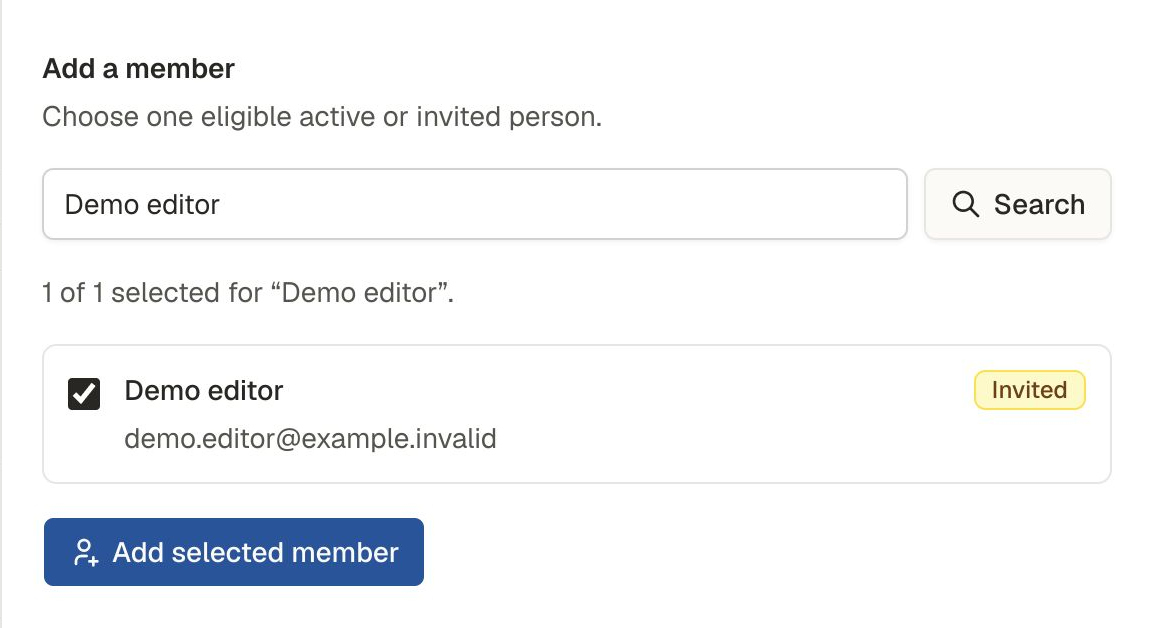
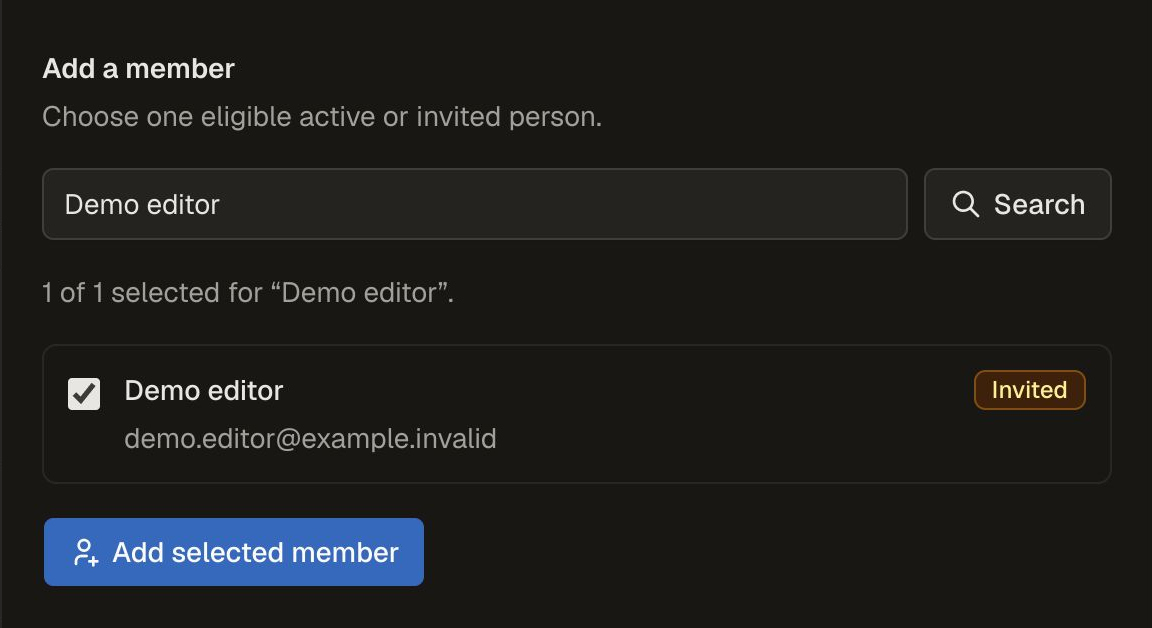
The fictional Demo editor is selected in the account search. Check the name and email, then choose Add selected member to save the membership.
Removing a membership leaves the account in place. It also leaves any permissions granted through other groups. Check the account’s other memberships when someone stops doing a particular kind of work.
If a change’s outcome cannot be confirmed, follow the interface’s guidance and check the resulting membership before trying again.
Understand the protected groups
The application maintains the details and permissions of Archive Administrators and Reviewers. Root can manage their members, but these groups cannot be renamed, reconfigured or deleted through ordinary management.
Root access is protected separately. The system’s Root group does not appear in the ordinary group list, and its membership cannot be assigned or removed through these controls.
Root accounts cannot receive additional permission groups. They can belong to reading audiences, which serve a separate purpose. Root access also remains subject to system protections and does not make disabled features available.
Review access when responsibilities change
Review someone’s memberships when they take on or leave a responsibility.
The application checks current permissions when protected actions are requested. An open screen may need refreshing before its controls reflect a membership change.
Changing working access leaves audience memberships, Directory credits and contributions in place. Consider those separately when reviewing someone’s involvement.
If someone should no longer sign in, a person with the required permission can deactivate their account. This revokes its sign-in sessions but does not erase contributions or recall information already read or copied. You cannot deactivate your own account or a Root account.
When the built-in groups do not fit
A community may need a narrower set of tasks or a different combination of permissions.
Root can create a custom group without changing the built-in groups. Custom groups are optional; you do not need one to begin using Archive Administrators or Reviewers.
See Managing custom permission groups for choosing permissions and maintaining a custom group.
Related reading
- Choosing who can read records explains visibility and reading audiences.
- Understanding access and sharing explains how working access, reading access and permission to use material differ.
- Community decisions and responsibilities explains the decisions behind working arrangements.