Choosing who can read records
Set who can read a published record and manage the people included in its audiences.
Communities decide which material can be shared openly and which should be available to particular people.
A record’s visibility setting helps put that decision into practice. To share the published record with particular accounts, select an audience: a set of accounts used for reading access.
The same audience can be selected for several records. Its membership then applies to all those published records.
Before you begin
Members of Archive Administrators and accounts with Root access can edit visibility and manage audiences.
Publishing a visibility change also requires approval. The Reviewers group provides review permissions; Archive Administrators membership alone does not include approval.
If your access comes through custom groups, you need permission to enter Admin and the permissions listed beside each task below. See Managing custom permission groups for how these are assigned.
Choose the record’s visibility
Choose the setting that reflects the agreed sharing decision:
| Visibility | Who can read the published record |
|---|---|
| Public | Anyone, without signing in. |
| Selected audiences | People signed in with active accounts that belong to at least one audience selected for the record. |
| Private | Unavailable through published reading. Authorized people can still read it in Admin. |
For Selected audiences, choose at least one audience. A reader only needs to belong to one of the selected audiences. An audience with no members gives no one access through that audience.
Approval does not automatically make a record public. These reading rules also apply to Root accounts when accessing published material outside Admin.
The available reader interfaces and whether people can reach the installation depend on how it has been set up.
Understand access in Admin
Private does not mean “only the person who created the record can see it.” People with permission to enter Admin and read records can inspect private records and records for audiences they do not belong to.
Audience membership does not limit which records those people can read in Admin. Consider this wider access when assigning working permissions.
The published preview in Admin uses working permissions. It does not show whether a reader outside Admin would be allowed to see the record. Reviewing submissions and accessing media in Admin require their respective permissions.
Set visibility on a record
With custom groups: You need permission to read records and edit drafts. Selecting an audience also requires permission to read audiences.
- Open an editable working draft and find Who can view this record?
- Choose Private, Public or Selected audiences.
- For Selected audiences, choose the intended audiences.
- Check the draft’s save status. Complete changes save automatically.
- Submit the draft for review when it is ready, or ask someone with submission permission to do so.
The visibility change takes effect when the revision is approved. An existing published record keeps its current visibility until then. Saving a public record’s draft as Private does not immediately restrict the published record.
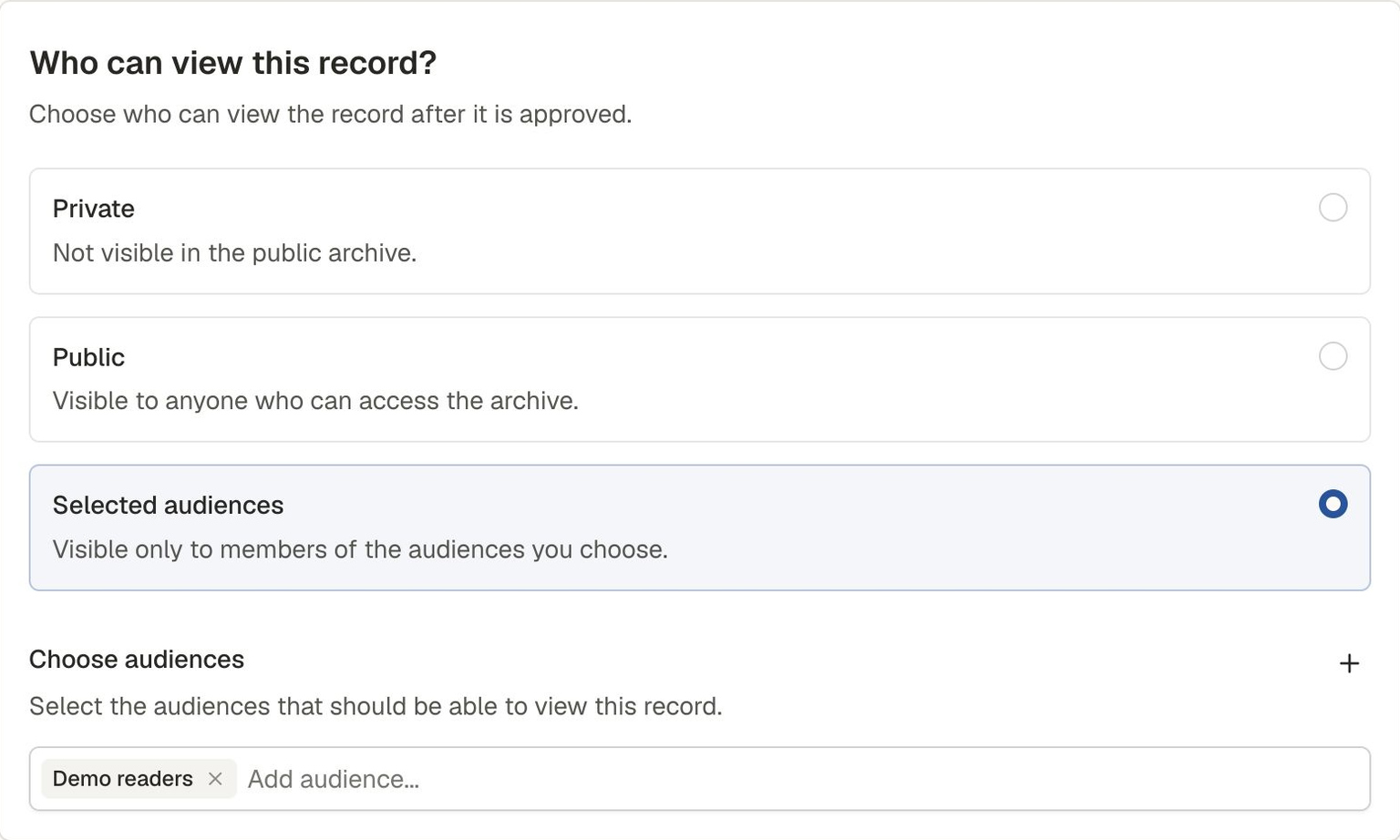
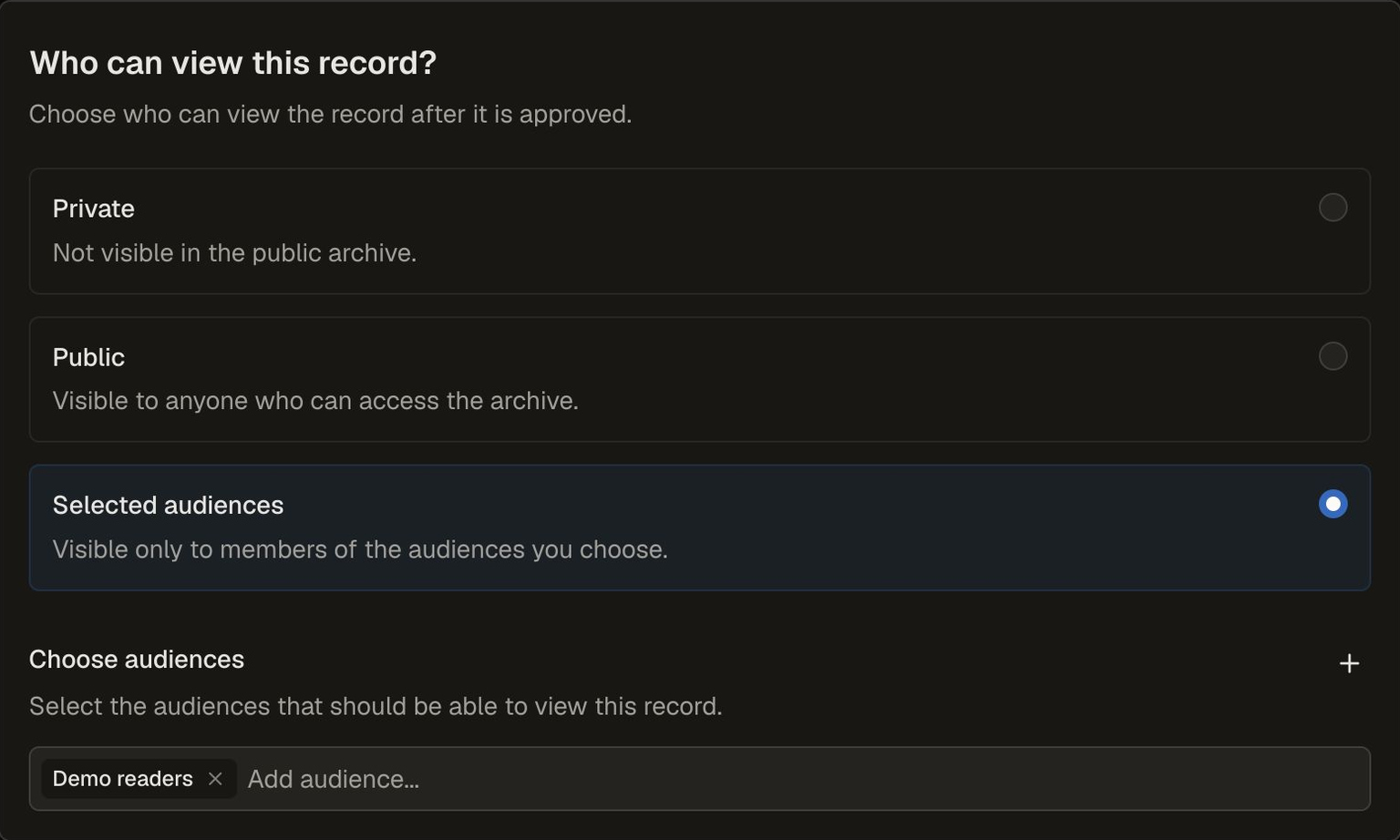
Selecting an audience on a demonstration draft. This visibility takes effect only after review approval.
If audience options cannot be loaded or you cannot look them up, ask someone with the necessary access to help. An unavailable list does not mean there are no audiences.
Create an audience when needed
First check whether an existing audience includes the intended readers. Reuse it when the same membership should apply. Create a new audience when a different set of readers is needed.
Agree on who should manage membership. Someone with audience-management permission can manage audiences they do not belong to, including audiences used on records they did not prepare. The application does not require approval from an audience owner.
With custom groups: You need permission to read and create audiences. Selecting initial members also requires permission to read user accounts and audience memberships, and to add members.
- Open People & Access → Audiences and choose Create audience.
- Enter the audience’s details.
- If the Members step is available, choose Next and select any initial members. Otherwise, create the audience without initial members.
- Choose Create audience.
The audience and any selected initial memberships are saved together.
Creating an audience does not change record visibility. Select it in the intended records’ drafts and complete review to make those published records available to its members.
Add or remove audience members
With custom groups: You need permission to read audiences and audience memberships, plus permission to add or remove members. Adding members also requires permission to read user accounts.
- Open People & Access → Audiences and choose the audience.
- Choose Manage members.
- Under Add a member, select the intended account and choose Add selected member.
- To remove someone, choose Remove beside their account and confirm Remove member.
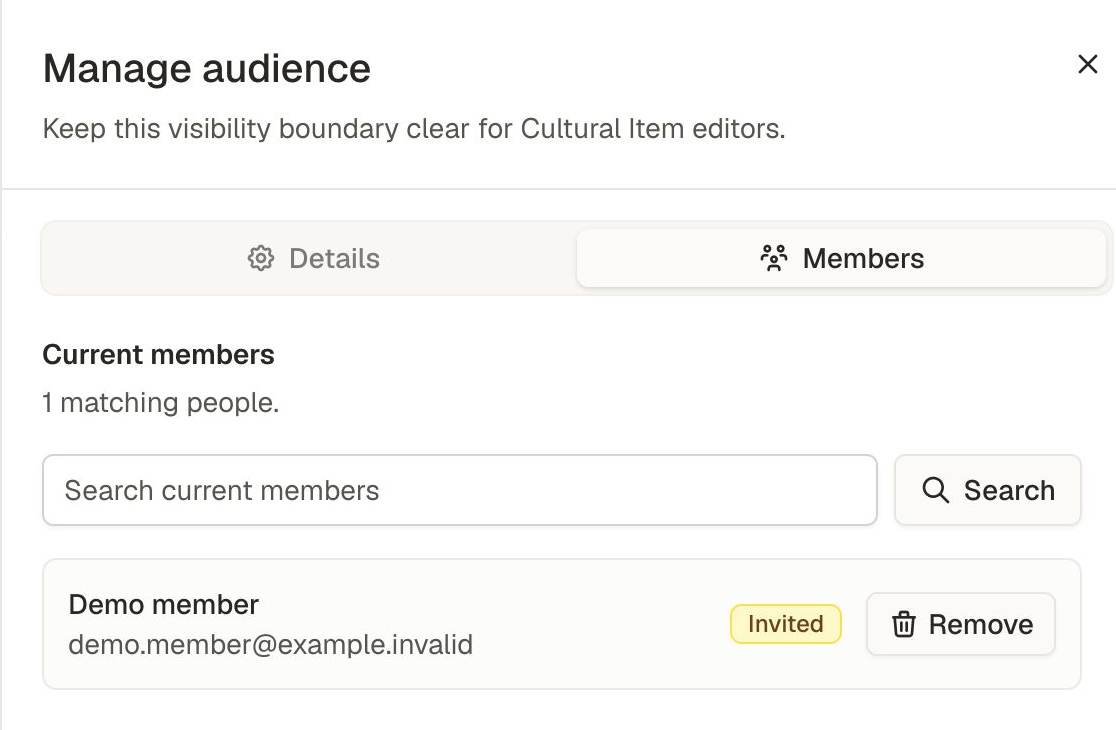
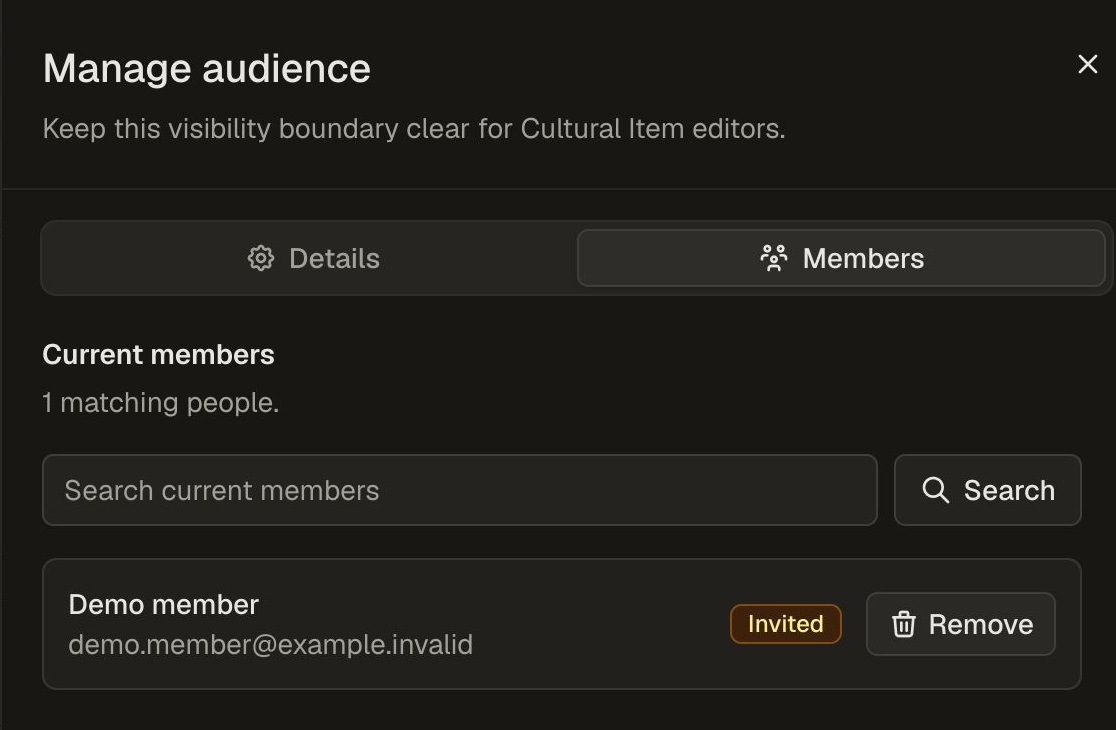
The fictional Demo member belongs to the demonstration audience. Remove opens a confirmation; choose Remove member there to end the audience membership.
Active and invited accounts, including Root accounts, can be added. Inactive accounts cannot. Invited people still need to activate their accounts before signing in.
Membership changes affect later requests to read published records. They do not require another review of each record.
Adding someone can give them access to every published record selecting that audience. Removing them may leave access through another selected audience or their separate working permissions in Admin.
Audience membership gives no editing or review permission. Crediting someone in the Directory does not add them to an audience. Being able to read material also does not establish permission to reuse or share it.
Neither membership nor visibility changes can recall material already seen, downloaded or copied.
If a change’s outcome cannot be confirmed, follow the interface’s guidance and check the resulting membership before trying again. A list that cannot be loaded is not an empty list.
Rename an audience
With custom groups: You need permission to read and update audiences.
Open the audience’s details and choose Manage audience. Edit its name, then choose Save audience.
Renaming changes the label. It does not change the members or which records select the audience.
Delete an unused audience
With custom groups: You need permission to read and delete audiences.
An audience can be deleted only when it has no members and no record versions refer to it. Earlier retained versions can keep an audience in use even after current records stop selecting it.
Use membership changes to change who belongs. Deleting an audience is not a shortcut for removing someone’s access.
- Open People & Access → Audiences and choose the audience.
- Choose Delete audience.
- Check the audience named in the confirmation, then choose Delete audience to confirm.
Deletion permanently removes the audience. If deletion is blocked, read the explanation. If the outcome cannot be confirmed, check the refreshed audience list before trying again.
Related reading
- Managing access to the Admin workspace explains working permissions and group membership.
- Understanding access and sharing explains how reading access differs from permission to use material.
- How records change explains drafts, review and publication.
- Community decisions and responsibilities explains the decisions behind access arrangements.